
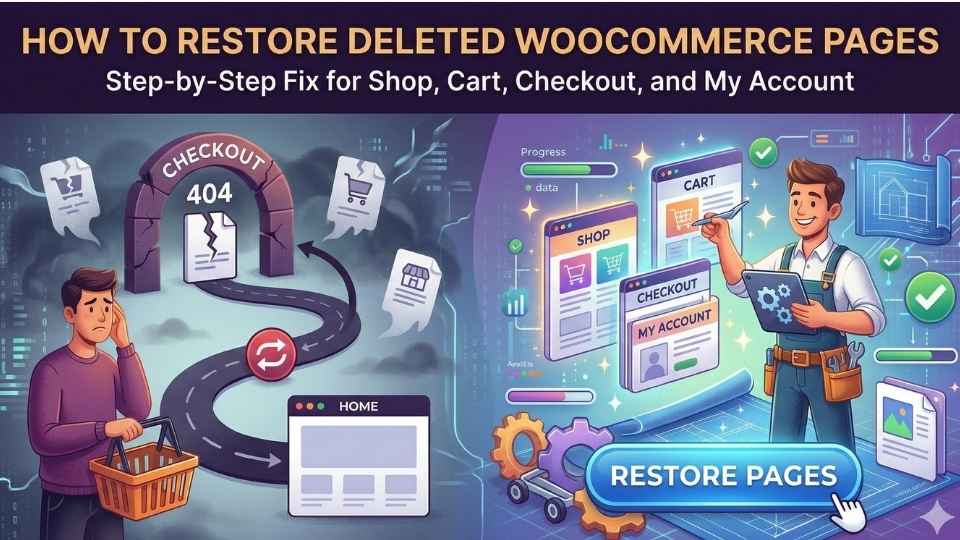
Have you ever spent hours perfecting your WordPress site, only to realize your store is suddenly broken?
I recently ran into a baffling problem while managing an e-commerce project. Everything looked perfect—the products were listed, the theme was beautiful, and the plugin was active. But the moment I clicked “Cart” or “Checkout,” the site looped me right back to the homepage. No error message, no “404 Not Found”—just a silent, frustrating redirect.
This “ghost in the machine” usually happens because of a simple mistake: critical store pages were accidentally deleted or unlinked during a site cleanup. In this comprehensive guide, we will walk you through exactly how to restore deleted WooCommerce pages so you can stop the redirects and start making sales again.
Table of Contents
Why Do WooCommerce Pages Disappear?
Before we dive into the fix, it is important to understand why your store broke. WooCommerce is a complex system that relies on four “Core Pages” to function: Shop, Cart, Checkout, and My Account.
When you first install the plugin, these pages are created automatically. However, if you recently reinstalled the plugin after a long break, or if you were trying to “declutter” your WordPress dashboard, you might have moved these pages to the trash. Even if you recreate them manually, WooCommerce might not “see” them because it is still looking for the old Page IDs in your database.
Learning how to restore deleted WooCommerce pages is the only way to re-establish that connection and fix the silent redirect loop.
You may read: How to get real viewers on YouTube using Google Ads
🛠 Step 1: Using the Automated Status Tool (The Fastest Fix)
If you are looking for how to restore deleted WooCommerce pages without touching a single line of code, this is your best option. WooCommerce has a built-in “emergency” tool specifically for this scenario.
How to Use the Install Pages Tool:
- Log in to your WordPress Dashboard.
- Navigate to WooCommerce → Status.
- Look at the top of the screen and click the Tools tab.
- Scroll down until you find the section titled: “Create default WooCommerce pages.”
- Click the Install Pages button on the right.
What this does: This tool scans your website for missing core pages. If it detects that your Cart, Checkout, or My Account pages are missing or reside in the trash, it will instantly recreate them with the correct settings and shortcodes. This single click solves the problem for 90% of users.
Also read: WordPress Homepage Breaks When Logged Out – Know How to Fix
🛠 Step 2: Manual Re-Assignment (When the Tool Isn’t Enough)
Sometimes the pages exist, but WooCommerce has “forgotten” which one is which. This often happens if you have manually created new pages and want to use them instead of the defaults. If the automated tool didn’t work, follow these steps on how to restore deleted WooCommerce pages manually.
How to Assign Pages Correctly:
- Go to WooCommerce → Settings.
- Click the Advanced tab.
- Under Page Setup, look at the dropdown menus for Cart page, Checkout page, and My Account page.
- If these are blank or set to the wrong page, select the correct ones from the list.
- Click Save Changes.
Note: For the Shop page, go to WooCommerce → Settings → Products and ensure the correct page is selected in the “Shop page” dropdown.
🛠 Step 3: Verifying Page Content and Shortcodes
A page in WordPress is just a blank container. To make it “work” as a Cart or Checkout, it needs an engine—a shortcode. Even if you know how to restore deleted WooCommerce pages and apply your strategies, they will remain empty and broken if the shortcodes are missing.
Open your Cart, Checkout, and My Account pages in the WordPress editor and ensure they contain exactly these snippets:
- Cart Page:
[woocommerce_cart] - Checkout Page:
[woocommerce_checkout] - My Account Page:
[woocommerce_my_account]
If these codes are missing, your site will continue to redirect to the homepage because the page has no instructions on what to display.
You can read: How to Remove “Built with GeneratePress” Footer Message
🛠 Step 4: Flushing Your Permalinks (The Critical Final Step)
This is a step that many tutorials overlook, yet it is arguably the most important. WordPress uses a “map” called Rewrite Rules to find your pages. When you delete and recreate pages, that map becomes outdated.
Even after you have learned how to restore deleted WooCommerce pages, your site might still loop to the homepage until you refresh this map.
- Go to Settings → Permalinks.
- Do not change any settings.
- Scroll to the bottom and click Save Changes.
- Do this twice.
Clicking “Save” twice forces WordPress to flush its cache and rebuild every URL on your site (how WordPress handles permalink structures). This simple action fixes nearly 50% of all WooCommerce redirect issues.
🛠 Step 5: Troubleshooting Theme and Plugin Conflicts
If you have followed every step above and your store is still redirecting, you likely have a conflict.
1. Theme Incompatibility
Some themes (especially blog-focused themes) have hard-coded redirects. If the theme doesn’t “recognize” the WooCommerce cart, it might automatically send users back to the homepage to avoid showing a broken page.
- The Test: Temporarily switch to a default theme like Astra or Storefront. If the cart starts working, your theme is the problem.
2. Caching Issues
Plugins like WP Rocket or LiteSpeed Cache can “save” the broken version of your site.
- The Fix: Clear your entire site cache. Always test your checkout flow in an Incognito window to ensure you aren’t looking at a cached version of the error.
Read to solve: Why ChatGPT Can’t Read My Website
Key Lessons: Preventing Future Deletions
Understanding how to restore deleted WooCommerce pages is an important skill, but preventing the issue is even better. Here at Wishdell Digits, we recommend these three safety rules:
- Never Delete, Just Hide: If you want to remove the “Cart” from your navigation menu, do it via Appearance → Menus. Never delete the page itself.
- Use Page Protection: If you have multiple editors on your site, use a plugin to “lock” core pages so they cannot be accidentally moved to the trash.
- Regular Backups: Always have a daily backup (like UpdraftPlus or Jetpack) so you can revert a “cleanup” gone wrong in seconds.
Final Thoughts
A broken checkout is a silent killer for any online business. When your Cart or Checkout redirects to the homepage, you aren’t just facing a technical glitch—you are losing customers and trust.
By following this guide on how to restore deleted WooCommerce pages, you have the tools to diagnose the “missing foundation” of your store, recreate the necessary pages, and flush your permalinks to restore full functionality.
Are you still stuck in a redirect loop? Sometimes, the issue can be buried deep in your .htaccess file or a specific plugin conflict. If you need expert help, reach out to us at Wishdell Digits. We specialize in untangling WordPress messes and getting stores back to peak performance.
Have you faced this issue before? Share your experience in the comments below!